

Directory Messages
What's on this page
About Directory Messages
Brand Administrators can change the messages that appear when a contact unsubscribes from (or subscribes to) a mailing list or the entire directory. The entire brand can have the same custom messages.
Qtip: You must have access to the Directory Settings tab to edit directory messages. This requires that you either have the Manage Directory permission enabled for your account, or, if your license has roles, for you to be assigned an admin role. Talk to your Brand Administrator if you’re interested in having access to the directory settings for your brand.

Qtip: The directory message settings described on this support page are only available in XM Directory.
Creating Subscription Messages
Before you can set the custom subscription messages for your brand, you will need to go into your library and create them.
You will repeat the steps in this section for each message you want to create. For example, if you want to have a separate message for opting into the directory, opting into a mailing list, opting out of the directory, and opting out of a mailing list, you will repeat these steps 4 times.
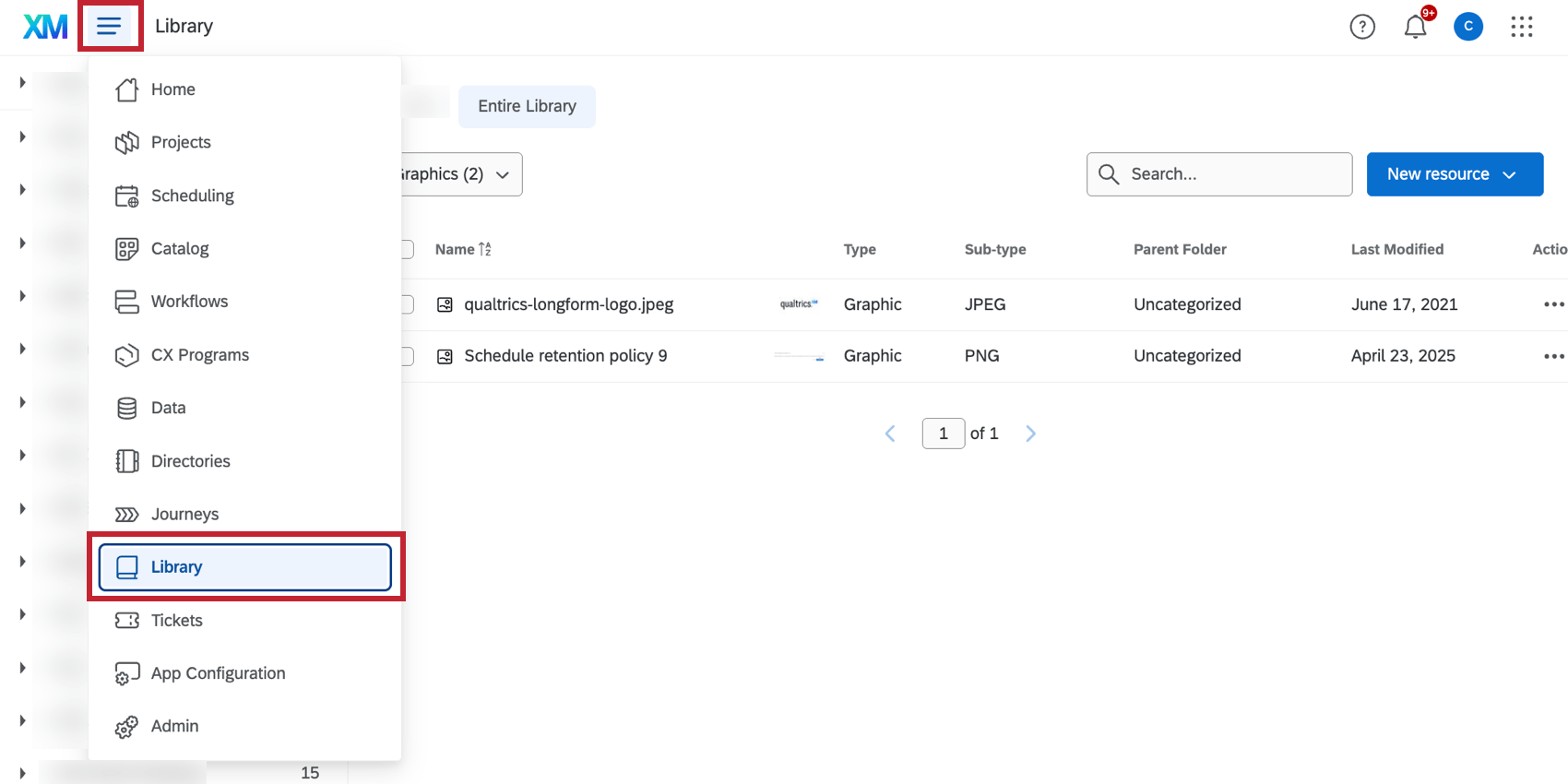
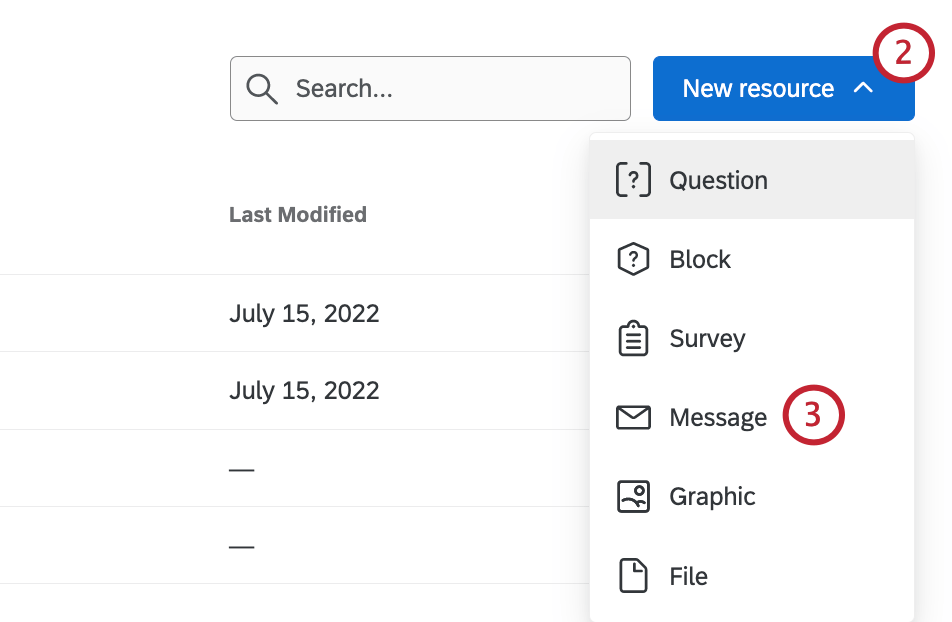
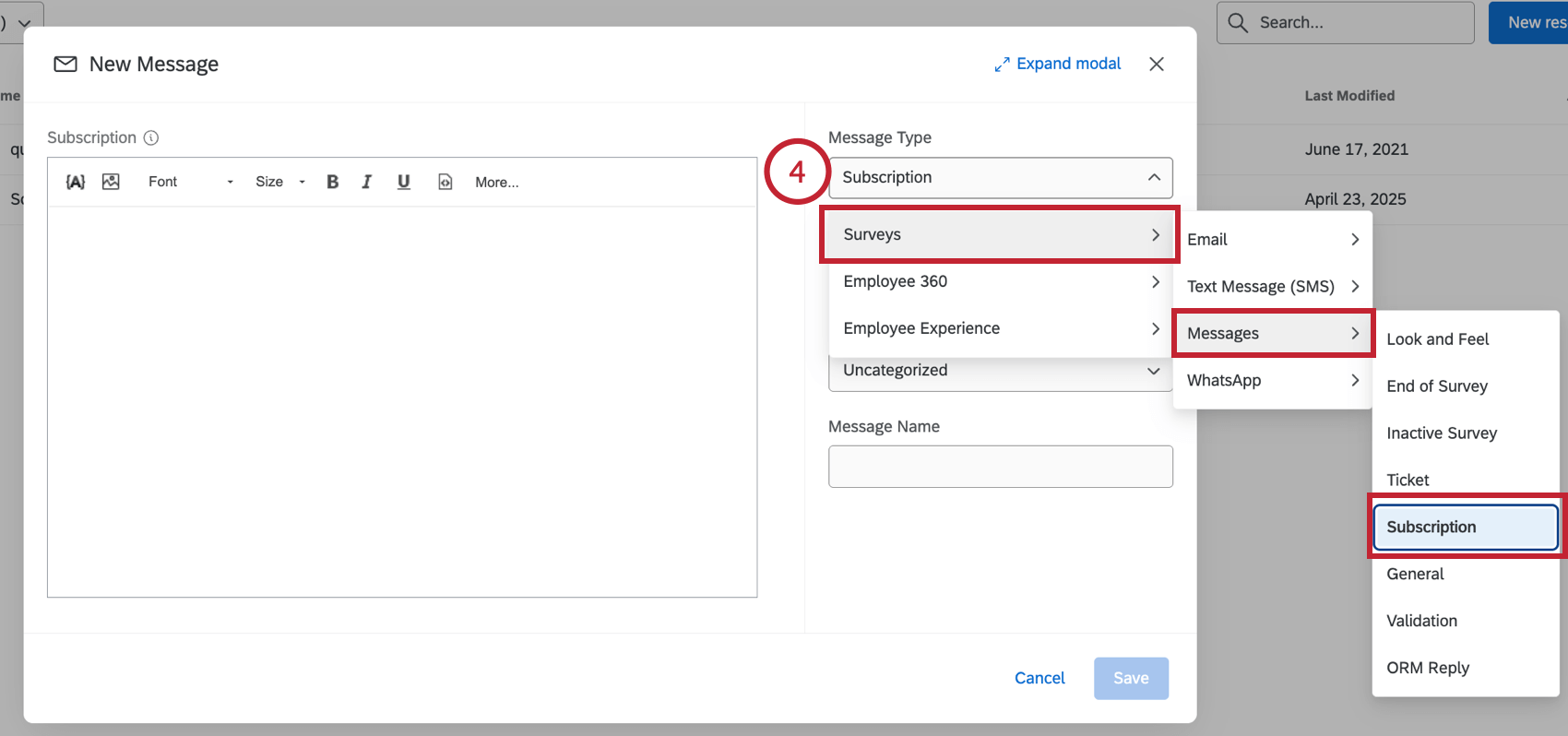
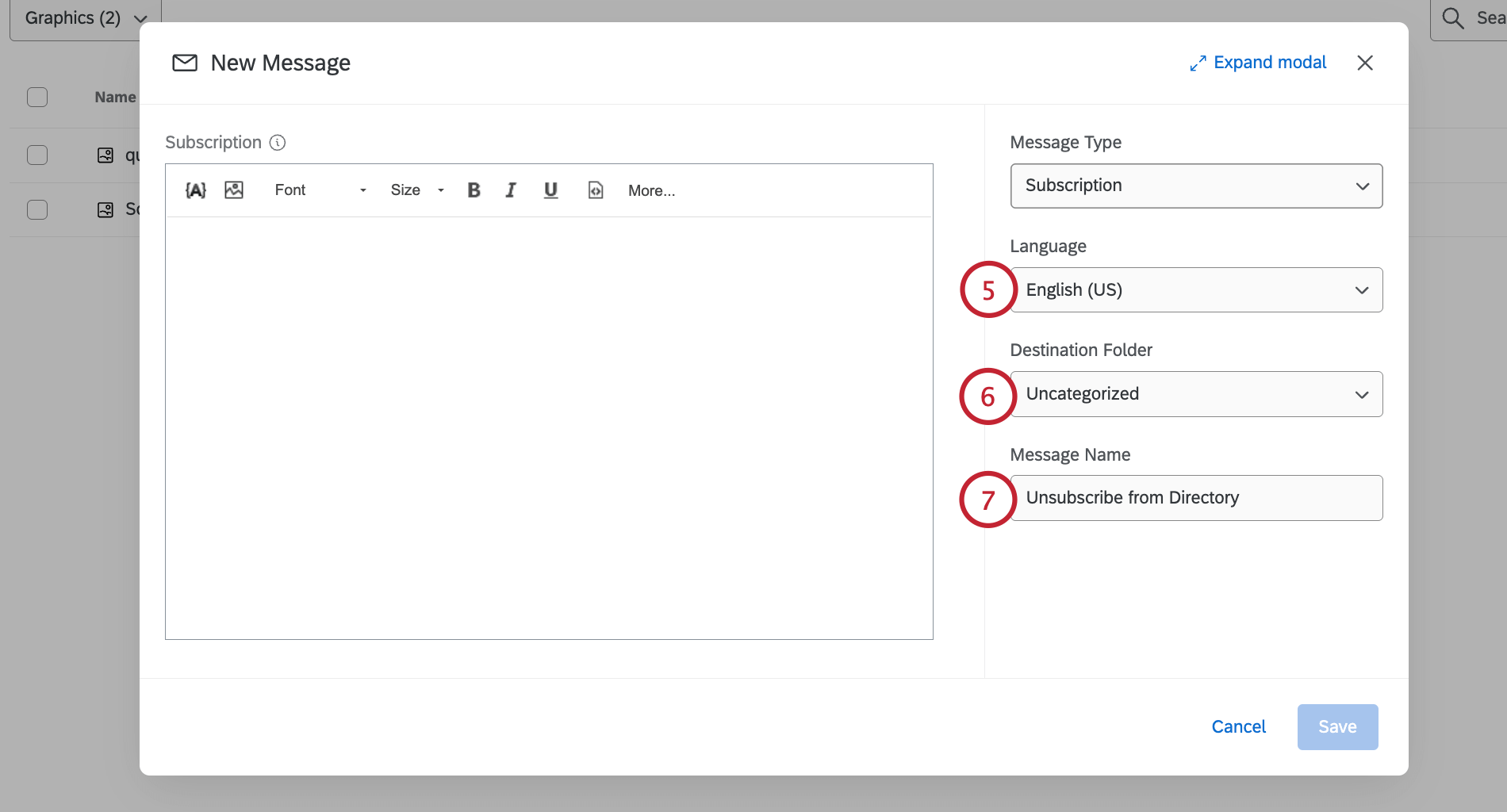
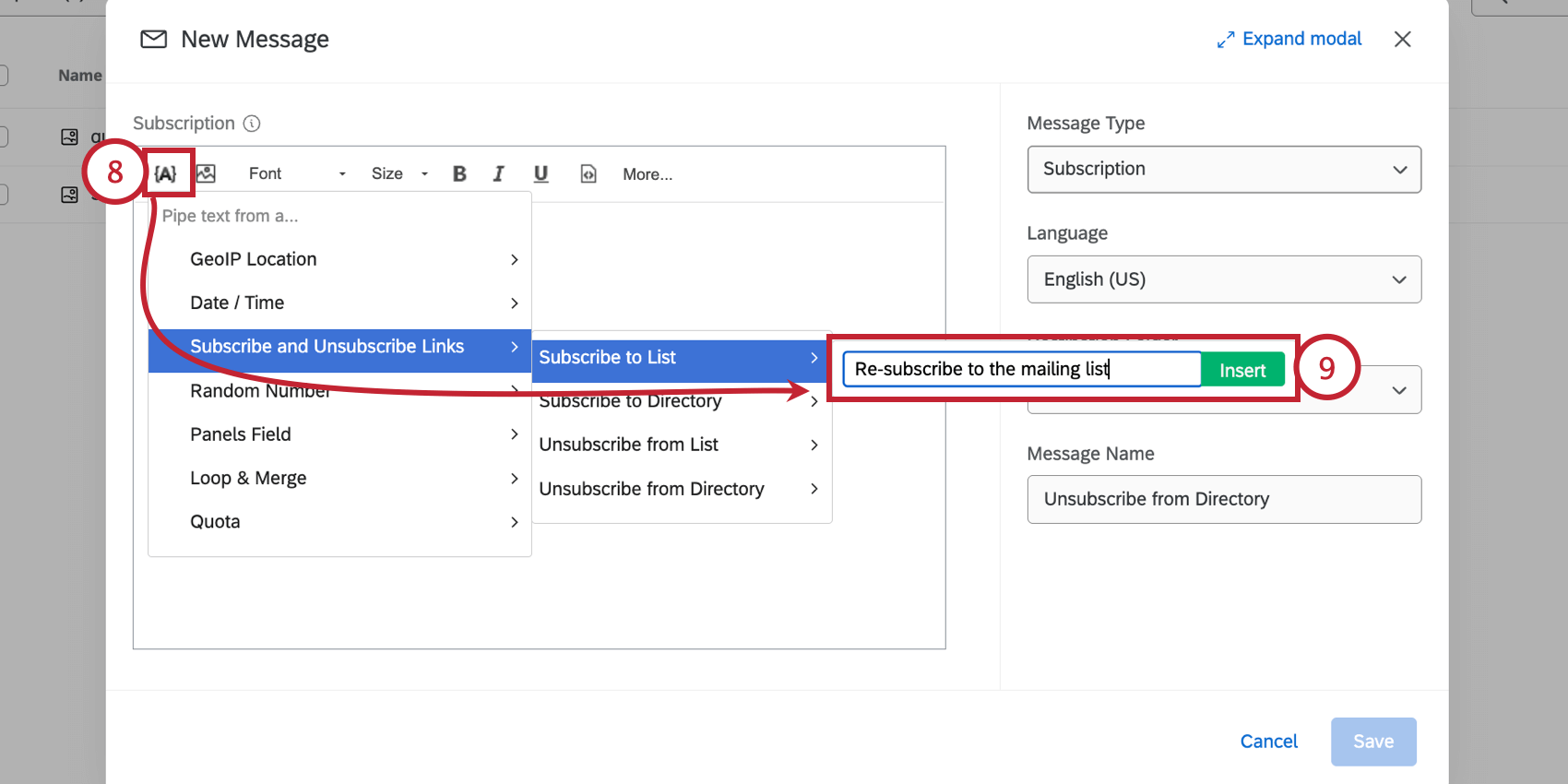
Here are your choices:
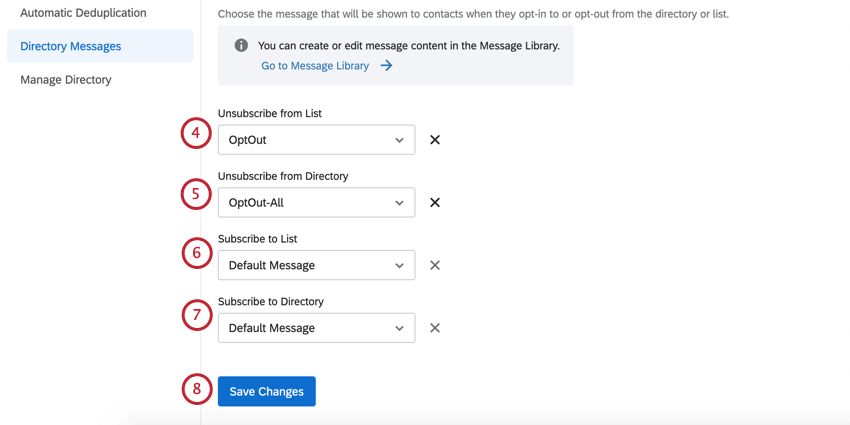
- Subscribe to List: When the recipient clicks this link, they will rejoin the mailing list.
- Subscribe to Directory: When the recipient clicks this link, they will opt back into the directory.
- Unsubscribe from List: When the recipient clicks this link, they will opt out of the mailing list, but still be opted into the directory.
- Unsubscribe from Directory: When the recipient clicks this link, they will opt out of the directory, and thus receive no distributions sent to any mailing list they’re a member of.
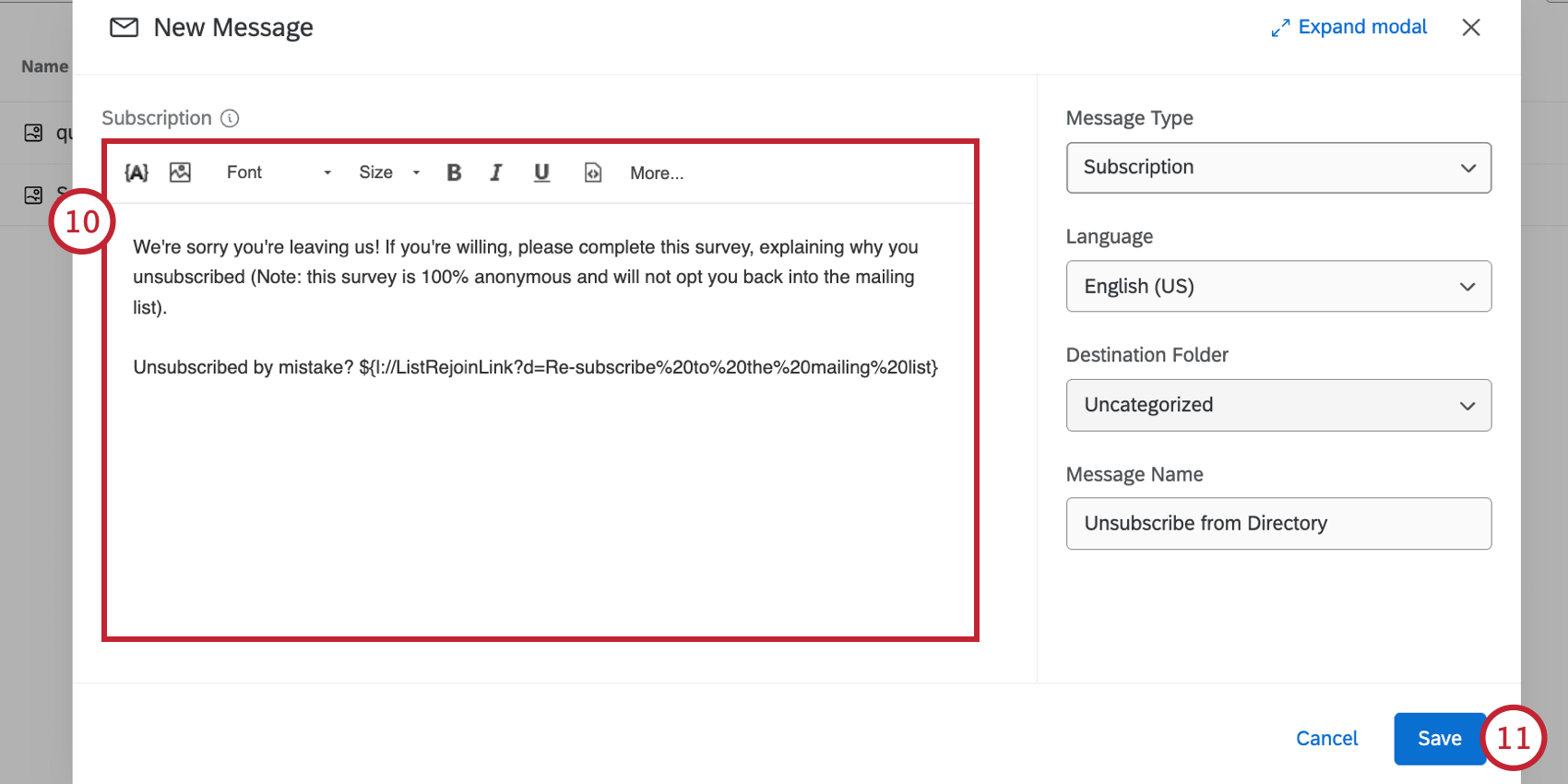
Qtip: You can use the rich content editor to further customize your message, such as adding branding for your company, a logo, or more.
Setting Subscription Messages
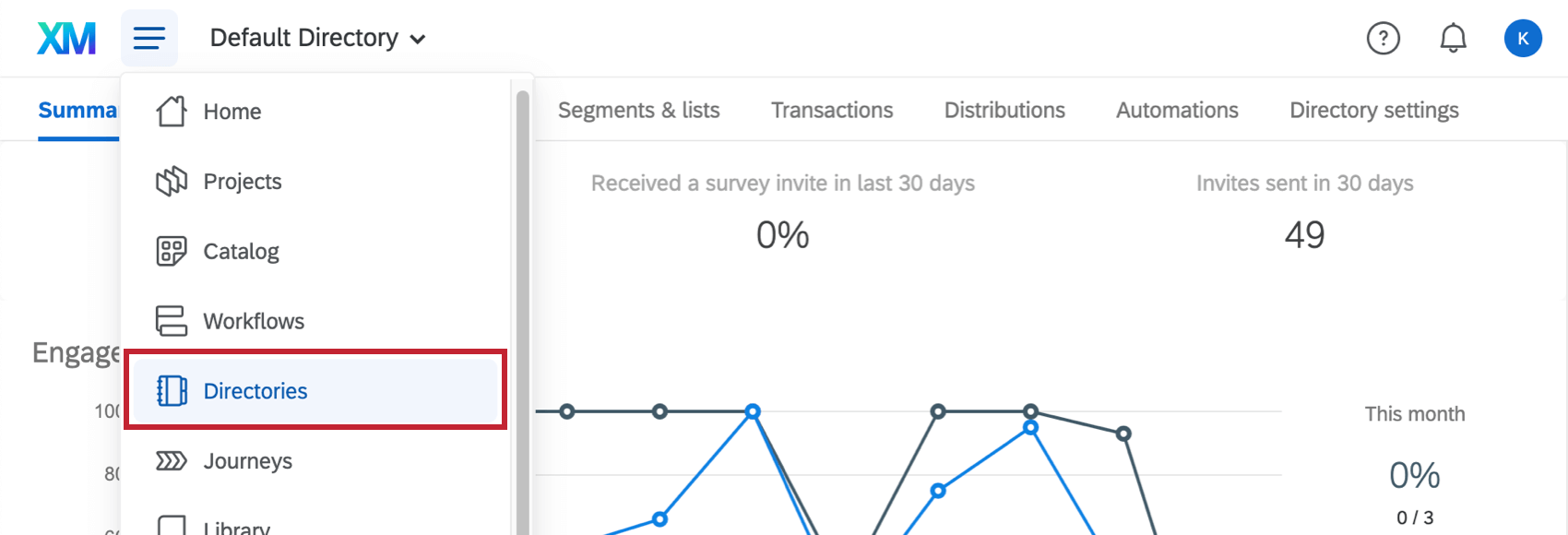
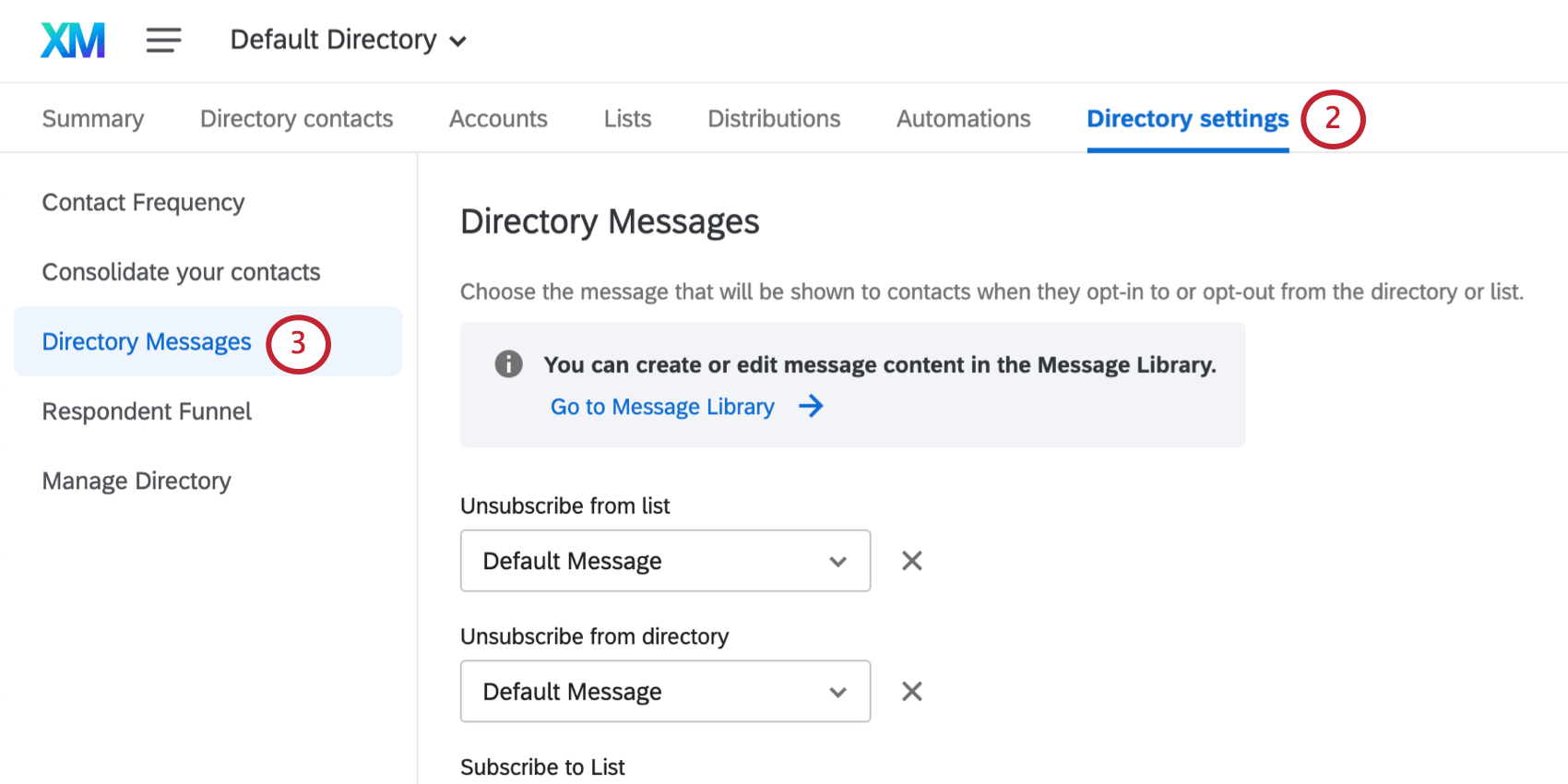
Once you’ve created subscription messages in your library, it’s time to make them public. You can have messages prepared for all the options on the page or just a few.
Qtip: If you have multiple directories, you can use the same subscription messages or brand new ones. You must set these separately.
Recipient Workflow
Qtip: This section displays the default subscription messages Qualtrics provides. You do not have to take the exact same format when creating your custom subscription messages, but this can hopefully provide a starting point if you need ideas.
When you send a survey invite to someone, it must always include an opt-out link. These generally appear as a link saying something like, “Click here to unsubscribe,” as seen below.
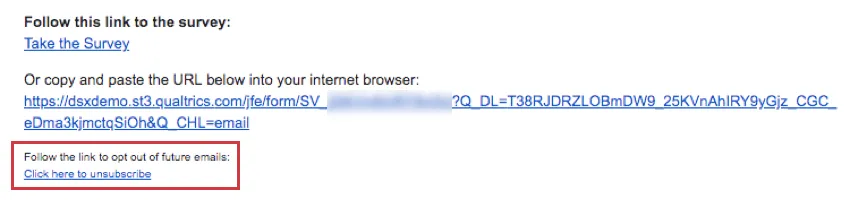
After clicking the link, a confirmation page appears. Recipients can choose to Unsubscribe, or close the window if they clicked the link accidentally.
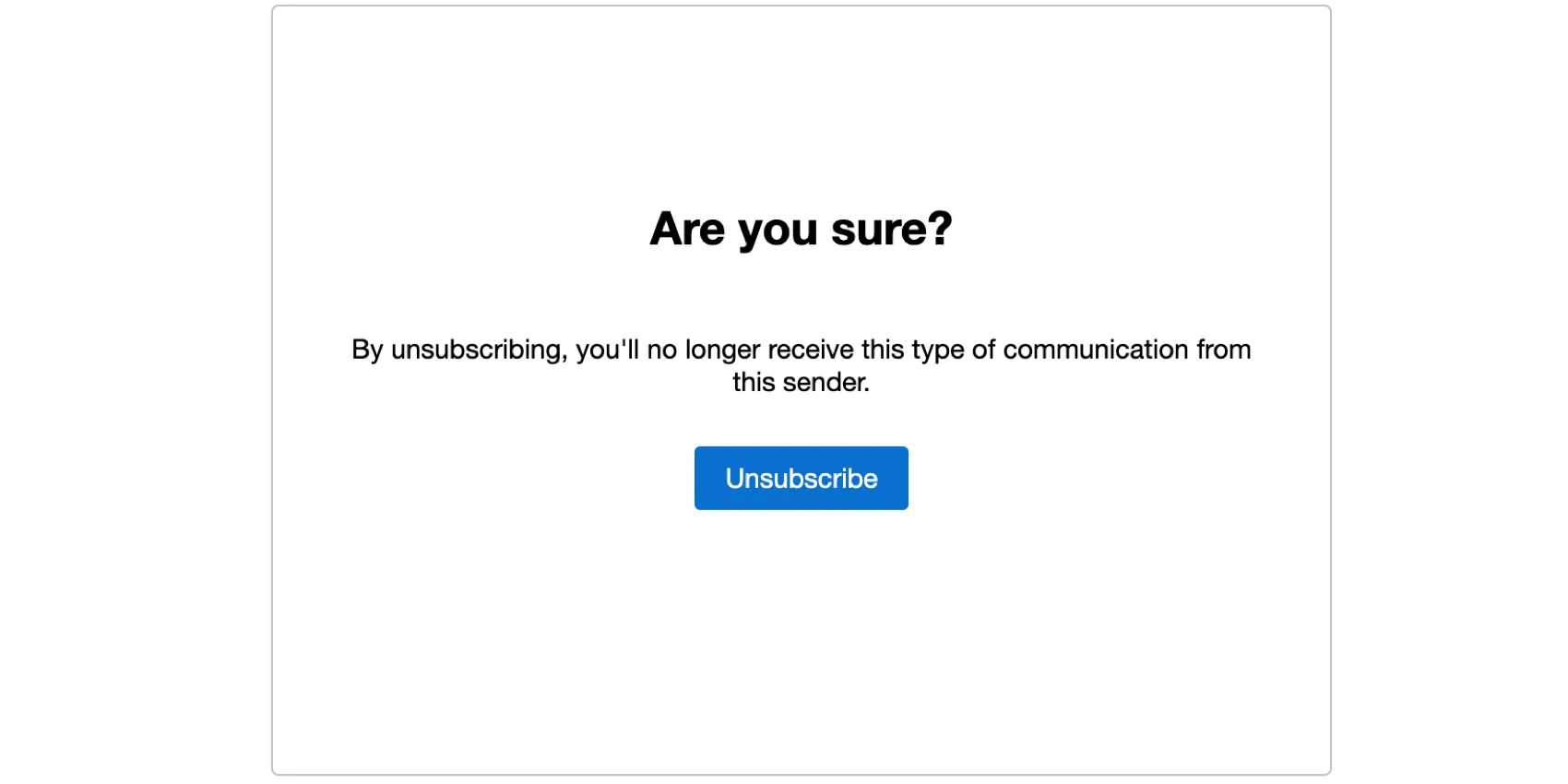
Qtip: The confirmation page cannot be customized. However, you can control which language it appears in. You can either set the respondent’s language using embedded data, or change the opt-out URL to
${l://OptOutURL}&Language=LN, replacing “LN” with your desired language code.
If the recipient selects Unsubscribe from all communications from this sender, they will be taken to the Unsubscribe from Directory message. This message contains a link to re-subscribe to the directory (all mailing lists).
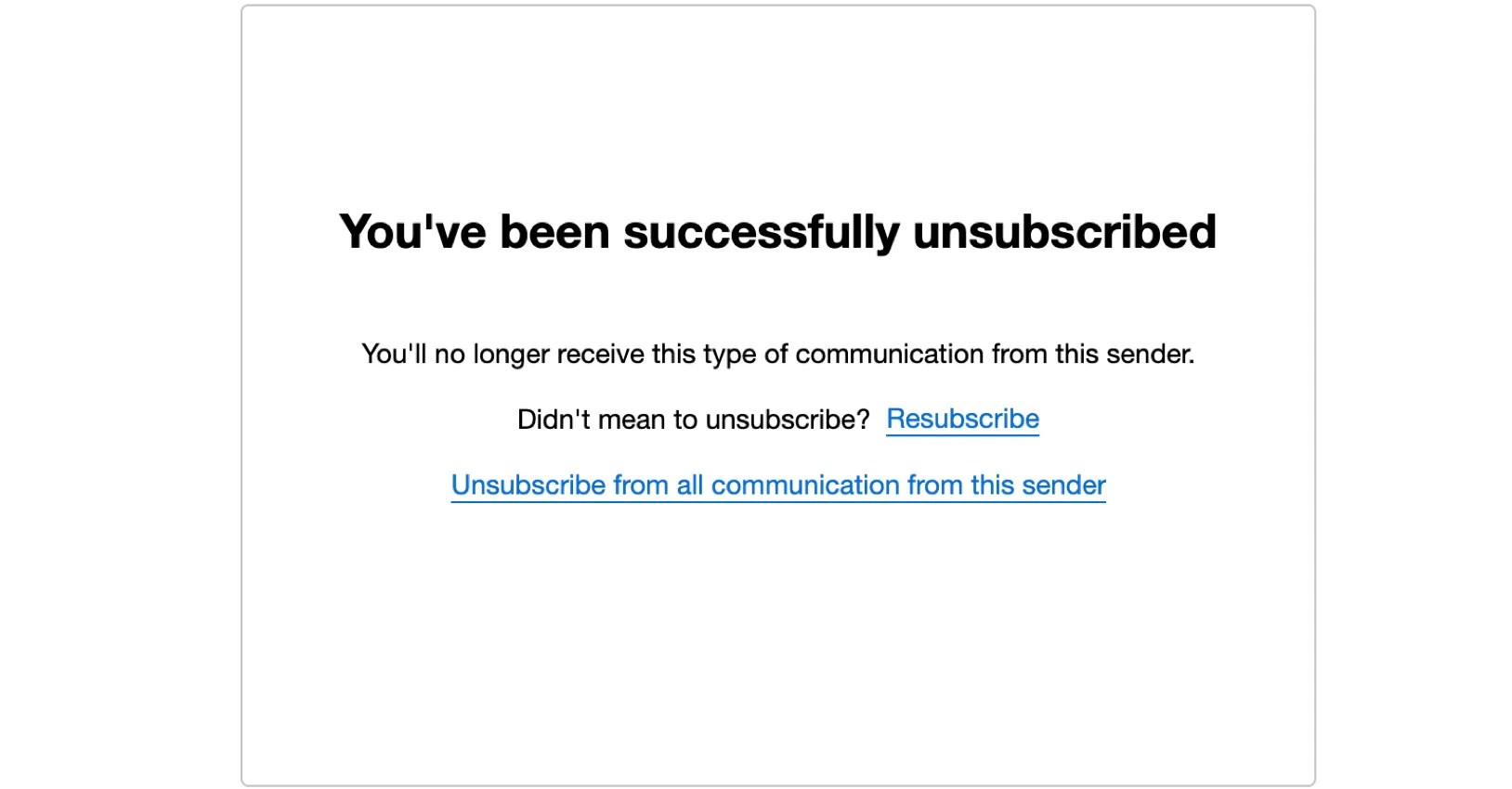
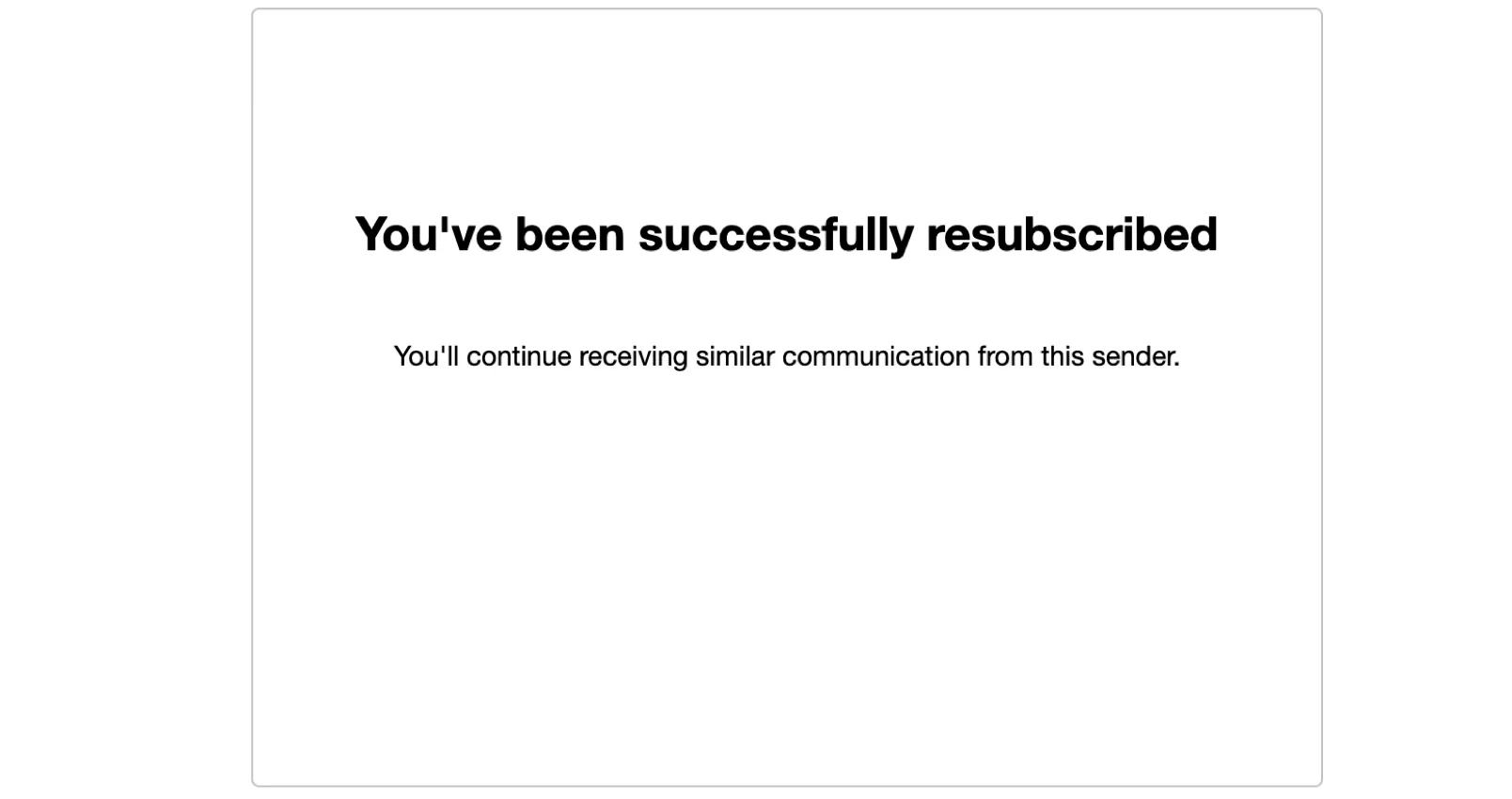
If the recipient clicks the link, they see the Subscribe to Directory message.
FAQs
If someone unsubscribes from one of my contact lists, will they automatically be unsubscribed from all my other contact lists?
If someone unsubscribes from one of my contact lists, will they automatically be unsubscribed from all my other contact lists?
How do I opt someone out of a contact list? I don't want them to receive emails from this list anymore.
How do I opt someone out of a contact list? I don't want them to receive emails from this list anymore.
You can also change a contact's subscription status in the product. See this page.
That's great! Thank you for your feedback!
Thank you for your feedback!